
How to Fix Linksys Hydra Pro 6E WiFi Connectivity Issues?
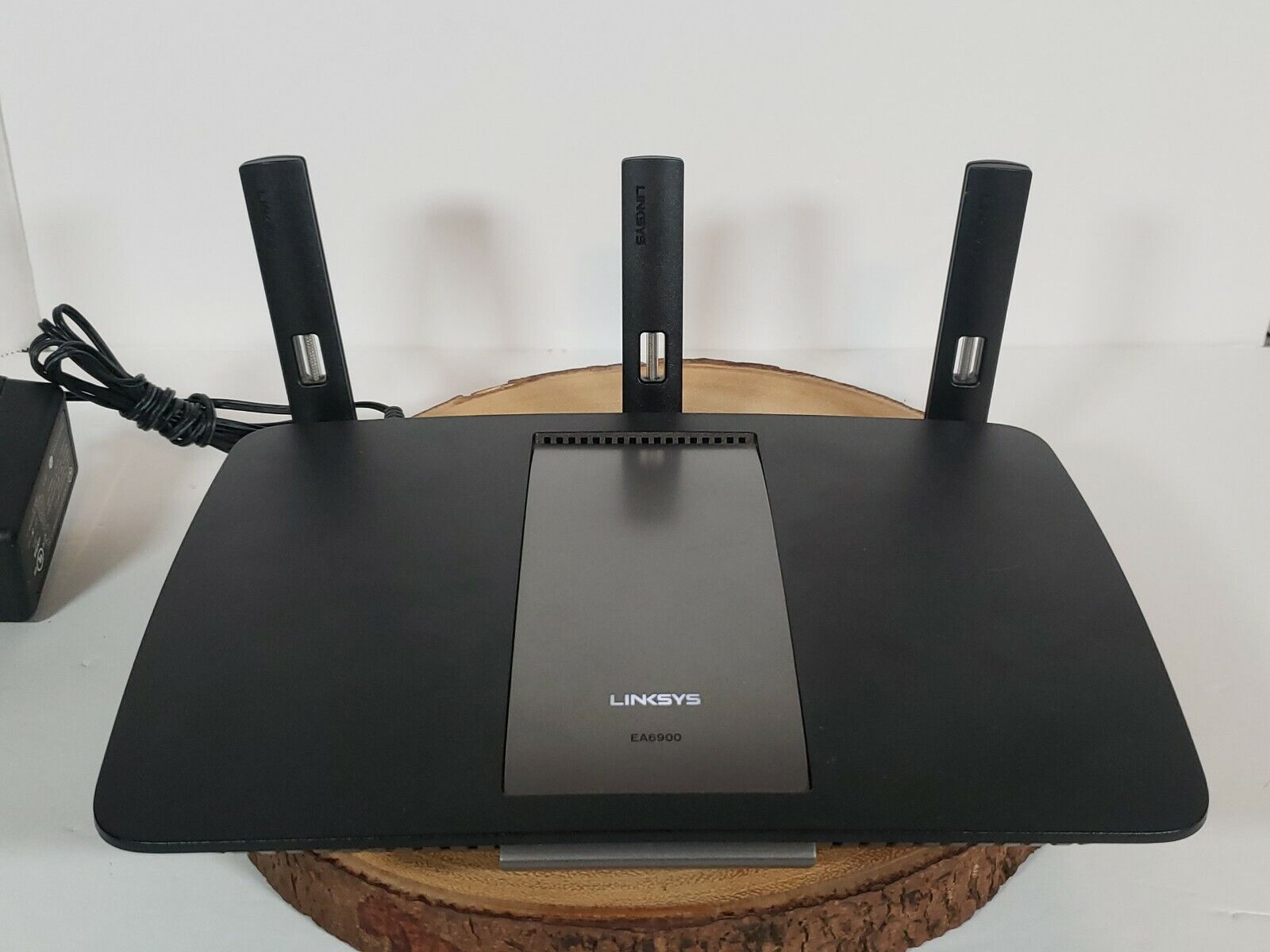
Struggling with connectivity problems on your Linksys Hydra Pro 6E ? Unable to connect your PC to the WiFi? Experiencing frequent disconnections between your router and modem? This article provides helpful tips to address these connectivity issues. Keep reading to find solutions.
Causes of Linksys Hydra Pro 6E Connectivity Issues
While it’s good to be eager to resolve the issue, understanding the root cause is crucial. Therefore, it’s important to identify the reasons behind the connectivity problems you’re encountering with your Linksys Hydra Pro 6E.
Here are some of the main causes for connectivity issues:
Loose cable connections
Incorrect WiFi network connection
Outdated firmware on your device
Presence of electronic devices near the router
Insufficient power supply to the WiFi device
Now that you’re aware of what may be hindering the performance of your Linksys router, let’s explore the troubleshooting tips provided below.
Fixing Linksys Hydra Pro 6E Connectivity Issues
Follow these steps to resolve WiFi connectivity problems with your Linksys Hydra Pro 6E:
Change the Router location
It’s highly likely that your Linksys Hydra Pro 6E is surrounded by electronic devices, causing WiFi interference. Devices such as cordless phones, baby monitors, washing machines, treadmills, televisions, microwave ovens, refrigerators, and Bluetooth speakers can disrupt the router signals. After completing the Linksys Hydra Pro 6E setup, avoid placing your device near these items, as well as corners or thick concrete walls.
Update the Linksys Hydra Pro 6E firmware
Updating the firmware of your Linksys WiFi range router can also help resolve connectivity issues. Follow these instructions to update the firmware:
Connect your Linksys router to the modem.
Switch on your PC.
Open an internet browser on your PC and log into your router.
Enter the default admin details and click Log In.
Go to Settings and select the Firmware Update button.
Performing a firmware update should address the WiFi connectivity issues with your Linksys Hydra Pro 6E. If the problem persists, proceed to the next step.
Note: To update the firmware of your WiFi device using your phone, access linksyssmartwifi.com.
Verify Cable Connections
Did you use an Ethernet cable to connect your router and modem? That’s a good choice. However, even though cables are reliable, they can cause connectivity issues if they are damaged. Ensure that the Ethernet cable you use is free from cuts, breakage, or any other damage. If it is damaged, replace it immediately.
Additionally, make sure that all cable connections (power cable and Ethernet cable) are secure. They should be finger-tight.
Adjust WiFi Channel Settings
Interference from neighboring WiFi networks can often disrupt the performance of your Linksys Hydra Pro 6E. To mitigate this, access the router settings and navigate to the WiFi channel settings. Try changing the channel to a less congested one, preferably one with fewer overlapping networks. Experiment with different channels to find the one that provides the best signal strength and stability.
Perform a Factory Reset
If all else fails and you’re still experiencing persistent connectivity issues, performing a Linksys router reset process can help. This will set the router to its default settings and can often resolve underlying configuration or software conflicts.
We always advise users to use the device’s user manual for instructions on how to perform Linksys extender reset or router.
By following these steps, you can resolve the connectivity issues with your Linksys device.
The Bottom Line
This article provided solutions for fixing WiFi connectivity issues with your Linksys Hydra Pro 6E. We hope these tips helped you troubleshoot the connectivity problems you were facing with your device.